

Install From Your IDE Extensions Marketplace (One-Click)
You can also install the extension directly from your browser using these deeplinks: VS Code
 Cursor
 Windsurf
The extension is not available on the marketplace yet. Please follow this manual installation guide.
.vsix, not the inner files) from the link below:Download Pilot Extension
Click to download the latest
.vsix fileInstall from VSIX (Manual)
You can also install the extension from the source VSIX latest release.Method 1: Using the Command Palette
- Open your IDE
- Press
Cmd+Shift+P(macOS) orCtrl+Shift+P(Windows/Linux) - Type “Install from VSIX” and select
Extensions: Install from VSIX... - Navigate to the downloaded
.vsixfile and select it - Click Install when prompted
- Reload your IDE when the installation completes
Method 2: Using the Extensions View
- Open your IDE
- Click the Extensions icon in the Activity Bar (or press
Cmd+Shift+X) - Click the ”…” menu (three dots) at the top of the Extensions view
- Select “Install from VSIX…”
- Navigate to the downloaded
.vsixfile and select it - Reload your IDE when prompted
Method 3: Using the Command Line
- VS Code
- Cursor
- Windsurf
Verify Installation
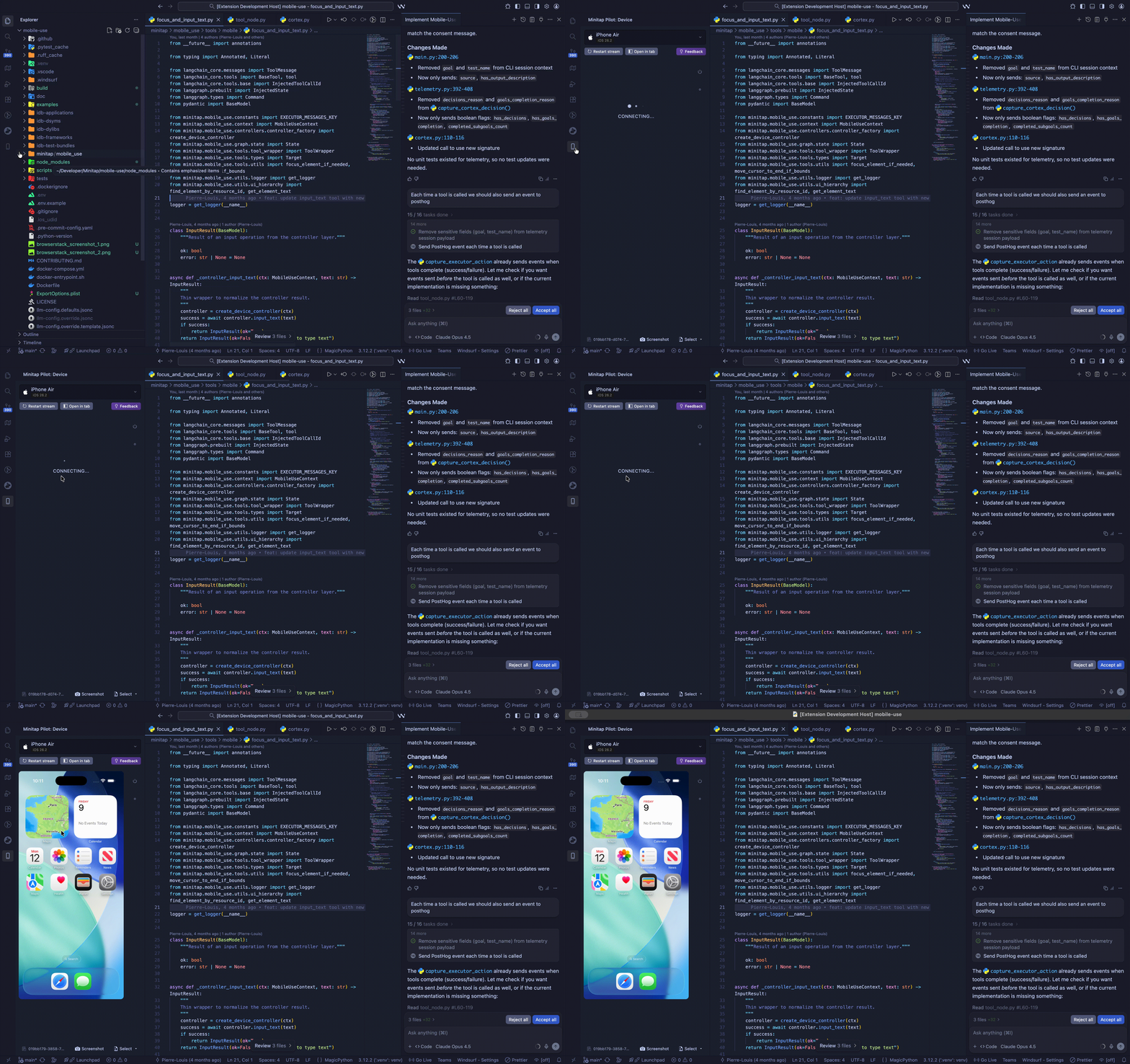
After installation, verify the extension is working:- Right-click on the Activity Bar (the sidebar with icons on the left)
- Check “Pilot” to add the Pilot icon to your Activity Bar
- Click the Pilot icon to open the extension panel
Prerequisites
Before using Pilot Extension, ensure you have the required dependencies:For Physical Android Devices
For Physical Android Devices
- USB debugging enabled on your device
- Device connected via USB or WiFi
For iOS Simulators
For iOS Simulators
- macOS (iOS Simulators only run on Mac)
- Xcode installed with Command Line Tools
- At least one iOS Simulator available